- Gluu Teaching Toolkit
- Posts
- How to Easily Delete Saved Logins & Passwords in the Passwords App
How to Easily Delete Saved Logins & Passwords in the Passwords App
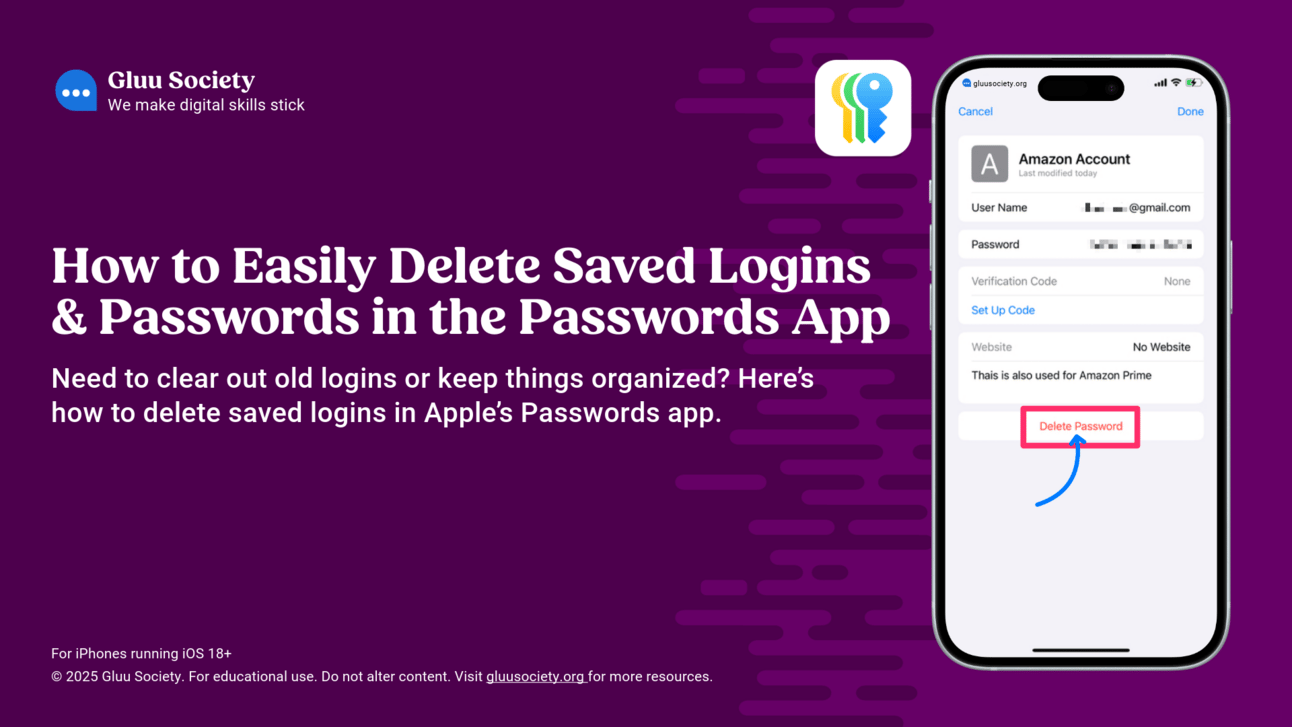
Old, unused accounts? They’re a security risk. In this lesson about the free Apple Passwords app, learners will see how to delete outdated passwords—keeping their saved logins nice and organized. This lesson is part of Unscammable Essentials Phase 2.

Linda Fawcus
February 05, 2025
What's On This Page
What You’ll Teach
In this lesson, you’ll guide students through:
Why Cleaning Up Old Logins Matters: The risks of keeping outdated or unused credentials.
How to Delete Saved Logins: Step-by-step instructions for removing old or incorrect passwords.
Recovering Mistakenly Deleted Passwords: How the “Recently Deleted” folder works and when it’s too late to restore.
Lesson Preview Video
Watch the preview video below for a quick peek at the lesson presentation to see how it flows. This is a great way to get a feel for the slides before you dive in. When you're ready, return to the Phase 2 Dashboard to grab your copy of the full Phase 2 presentation.
Lesson Plan
Here's a brief lesson plan that outlines each step of the lesson. You’ll find all the details clearly laid out on the slides.
Objective of this lesson: Teach learners how to delete outdated or unnecessary logins from the Apple Passwords app to keep their account list organized.
Begin by explaining:
What’s the Passwords app? The Passwords app stores your login details securely. Deleting outdated logins helps keep it tidy and secure.
Why does it matter? Removing unused or incorrect logins reduces clutter and ensures you only see current, valid accounts.
Have the group follow the included step-by-step instructions for this skill.
Try the included “Get Hands On” activities.
Discuss the suggested Gluu Tips.
Cover off glossary terms where needed.
Check what your students have learned by referring to the “Check What You Know” slide. Now is a good time to pause for questions.
Help learners use QR code to download student resources for all lessons in this phase.
Speaker Notes For This Lesson
Access the PDF of the speaker notes for this lesson using the button below. These notes give you extra insights to guide you through the material and help you deliver an engaging lesson. The PDF is optimized for any device—you can view it, download it, or print it. Quick heads-up: the editable Phase 2 slide presentation also includes built-in speaker notes for all lessons. 👇

Use the links below to jump back to the Phase 2 Dashboard or move forward to the next lesson in this phase.
Next Phase 2 Lesson 👉 |